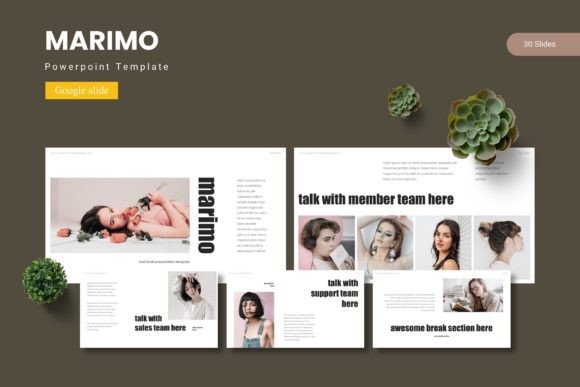
Marimo Google Slide Template: Streamlining Visual Communication Across Projects
When building a presentation, the visual foundation often determines how effectively an audience absorbs and retains information. A well-structured template eliminates the friction of starting from a blank canvas, offering a cohesive system of slides, colors, and graphics that can be adapted to various contexts. The Marimo - Google Slide Template provides a complete framework for creating polished presentations without requiring design expertise. With 150 slides across five color variations, it supports a wide range of projects — from corporate reports to educational modules and creative portfolios.
Understanding the Scope of the Marimo Template
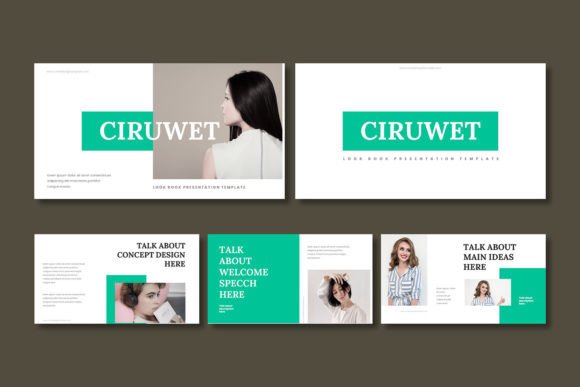
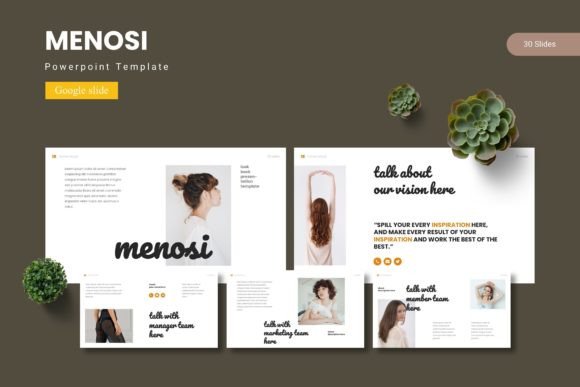
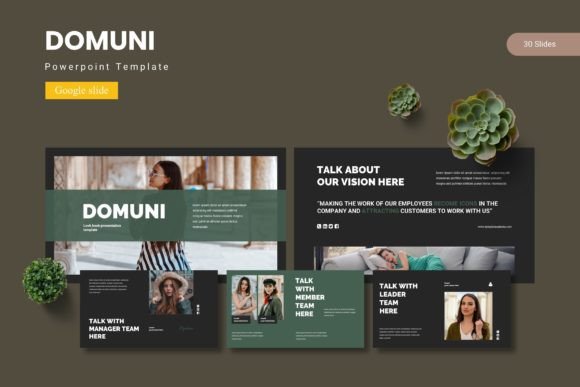
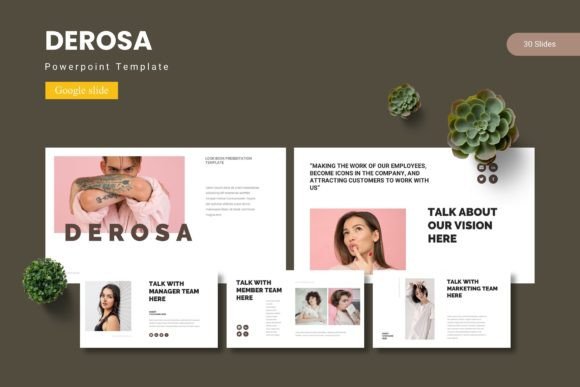
The Marimo template is not a single slide deck but a collection of 150 slides organized into five distinct color schemes, with 30 slides per scheme. This volume allows presenters to select the style that best fits their brand or topic while maintaining internal consistency. Each color variation includes its own set of section break slides, infographics, and portfolio layouts, making it possible to create a complete presentation without mixing styles.
The template is built on master slides, meaning changes made to the master — such as adjusting a font or repositioning a logo — automatically propagate to all slides that use that master layout. This feature saves significant time during the editing phase and ensures uniformity across the entire deck. Graphics and illustrations are pixel-perfect, resizable, and editable, giving users control over every visual element.
Slide Categories and Structure
Users receive 30 slides per template, which typically include title slides, agenda slides, content layouts, data visualization pages, quote slides, team member sections, timeline pages, and closing slides. The inclusion of section break slides helps segment longer presentations into digestible parts, which is particularly useful for educational lectures, business proposals, or multi-chapter reports.
For example, a marketing manager preparing a quarterly review might use a section break slide to transition from performance metrics to future strategy. The visual cue reinforces the narrative flow and keeps the audience oriented. Similarly, an educator can use section breaks to separate topics within a single lecture, making it easier for students to follow along.
Customization Flexibility and Editing Capabilities
One of the primary advantages of using a template like Marimo is the ability to adapt it without starting from scratch. All graphics, including icons, charts, and decorative elements, are resizable and editable. Users can change colors, adjust sizes, or replace placeholder images with their own content using the picture placeholder feature — simply drag and drop an image into the designated area.
The template includes handcrafted infographics that present data visually. Instead of creating charts from scratch, users can modify the infographics to match their data sets. This is especially valuable for researchers or analysts who need to communicate complex information quickly. For instance, a researcher presenting survey results can customize a pre-designed bar chart or flow diagram, adding labels and adjusting proportions without needing graphic design software.
All graphic elements are based on master slides, which means the underlying structure remains stable even after extensive editing. This reduces the risk of misaligned elements or inconsistent spacing, a common frustration when working with unorganized slides. The templates are provided as PPTX files compatible with Google Slides, and the folder includes a dedicated Google Slides version for each color scheme.
Font and Photo Information
The download package includes a readme file with font and photo information. Users are advised to check font licenses and ensure that any photos used are properly credited or replaced with original images. The template itself uses system fonts or free fonts, but it is always good practice to verify before finalizing a presentation. The photo placeholders are designed to clearly indicate where images should be inserted, making the replacement process intuitive even for new users.
Practical Applications Across Different User Groups
The Marimo template’s diversity makes it suitable for a broad audience. Professionals, consumers, creators, educators, researchers, hobbyists, and business owners can all find value in its adaptable layout. Below are a few scenarios illustrating how different users might leverage the template.
Business Owners and Professionals
A business owner pitching to investors needs a clear, professional deck that communicates the company’s value proposition, financial projections, and market opportunity. With the Marimo template, they can quickly assemble slides that include product mockups, team profiles, and growth charts using pre-built layouts. The five color schemes allow them to choose one that aligns with their brand identity — perhaps a blue scheme for a financial services firm or a green scheme for an environmentally focused company. The consistency across slides reduces preparation time and ensures that the presentation looks cohesive even if multiple team members contribute content.
Educators and Researchers
Teachers and professors often prepare lecture slides that require a mix of text, diagrams, and images. The Marimo template’s infographics and timeline slides are ideal for presenting historical data, scientific processes, or lesson sequences. A biology instructor, for example, can use a customized flowchart to explain cellular respiration, replacing placeholder text with specific terms and adding annotations. Section break slides help organize the class period into segments: introduction, key concepts, activity, and summary. Researchers presenting at conferences can similarly benefit from the clean, professional look that focuses attention on data rather than design distractions.
Creators and Hobbyists
For creators building portfolios or project updates, the gallery and portfolio slides are particularly useful. A photographer can showcase a series of images using the drag-and-drop picture placeholders, while a graphic designer can display brand identity projects with mockups built into the slides. The ability to edit every element means the portfolio can evolve over time without needing a new template. Hobbyists sharing presentations at community events or workshops can also use the template to create handouts or digital slideshows that look polished and engaging.
Workflow Efficiency and Time Savings
One of the overlooked benefits of using a comprehensive template like Marimo is the reduction in decision fatigue. When every slide layout is already designed, users can focus their energy on content creation rather than layout design. This is especially important when deadlines are tight or when multiple presentations need to be produced in quick succession.
For teams collaborating on a presentation, the use of master slides ensures that formatting inconsistencies are minimized. A colleague in marketing might edit a slide on consumer demographics, while a finance team member works on revenue projections. When both use the same template, the final compilation requires less adjustment. The Marimo template’s inclusion of 150 slides across five colors means that even large teams can find a consistent style without running out of unique slide variants.
Supported File Formats and Setup
The main file included with the Marimo template is a PPTX file, which is compatible with both Microsoft PowerPoint and Google Slides. In addition, the folder contains separate Google Slides files for each of the five color schemes, allowing users to work directly in the browser without conversion issues. The readme file provides instructions on how to install fonts and manage photo placeholders, ensuring a smooth start.
For users who prefer to work in Google Slides, the template is optimized for drag-and-drop functionality. Picture placeholders are clearly marked so that inserting images is straightforward — users simply drag an image file over the placeholder and release it. Similarly, text boxes are pre-positioned, and colors are pre-defined to match the selected color scheme. This low-friction setup makes the template accessible to those with minimal software experience.
Observations on Design Trends and Template Adaptability
Presentation design trends have shifted toward cleaner layouts, ample white space, and data visualization that tells a story. The Marimo template reflects these trends with its handcrafted infographics, pixel-perfect illustrations, and balanced use of color. Rather than relying on flashy animations, the template emphasizes clear communication through structured layouts and thoughtful typography.
Adaptability is another strength. Because the template is based on master slides, users can introduce custom elements — such as a company logo or specific color palette — without breaking the template’s consistency. For business owners that frequently present to different audiences, having a core template that can be tweaked for each presentation reduces the time spent on redesigning slides from scratch. Similarly, educators who teach multiple courses can save a version of the template for each subject, adjusting only the content while retaining the same visual structure.
The five premade colors provide a solid starting point, but since all graphics are editable, users are not locked into those defaults. A team leader may choose a blue scheme for a professional report but later modify elements to match a client’s brand. The color variation also helps in organizing multiple projects — for instance, using a different color for each department’s quarterly review keeps the visual identity distinct while maintaining overall coherence.
Considerations for Optimal Use
While the Marimo template is robust, users should take a few steps to maximize its utility. First, review the included font information and ensure that all fonts are installed on the device where editing will occur. This prevents unexpected substitutions that might alter the design. Second, take advantage of the picture placeholders by using high-resolution images that fit the aspect ratio of the placeholder; this maintains the intended composition. Third, consider the sequence of slides in the presentation — the template provides many options, but not all slides need to be used. Curating the selection to match the narrative will keep the presentation focused and engaging.
Another consideration is the balance between customization and consistency. Over-editing colors, fonts, or graphic elements can reduce the template’s cohesive look. It is often better to stick to one color scheme throughout and only adjust individual elements when necessary for emphasis. For users who present frequently, maintaining a consistent visual style across presentations builds brand recognition and professionalism.
File Structure and Access
The Marimo template package is organized into a folder that contains the main PPTX file, separate Google Slides files for each of the five color schemes, and a readme document with setup instructions. The readme file covers font details, photo information, and basic usage tips. Users who are new to template installation will find the readme helpful, while experienced users can dive directly into editing.
The 150 total slides are distributed across the five colors, giving users 30 slides per scheme. This means that for each color, there is a complete set of slide types — such as title, content, section break, infographic, gallery, and portfolio slides. The slides are designed to be rearranged and duplicated as needed, so a user can pull slides from multiple color schemes if they want a mixed-color presentation, though maintaining visual consistency is recommended.
For educators or trainers who need to distribute templates to students or colleagues, the Google Slides format is especially convenient. There is no software installation required, and collaborators can edit simultaneously in real time. The Marimo template’s compatibility with both local and cloud-based workflows makes it a flexible tool for a variety of settings.
In summary, the Marimo - Google Slide Template offers a comprehensive solution for building presentations that are both visually appealing and functional. Its 150 slides, five color schemes, handcrafted infographics, and master slide architecture make it suitable for professionals, educators, creators, and business owners alike. By reducing the time spent on formatting and increasing the focus on content, the template helps users communicate their ideas more effectively. Whether used for a boardroom pitch, a classroom lecture, or a creative portfolio, the Marimo template provides a reliable foundation that can be adapted to diverse needs.